
Configuration
Everything you set on the deploy form maps to a field on the deployment.deploy API call. This page walks them, top to bottom, with the values they accept.
The deploy form#
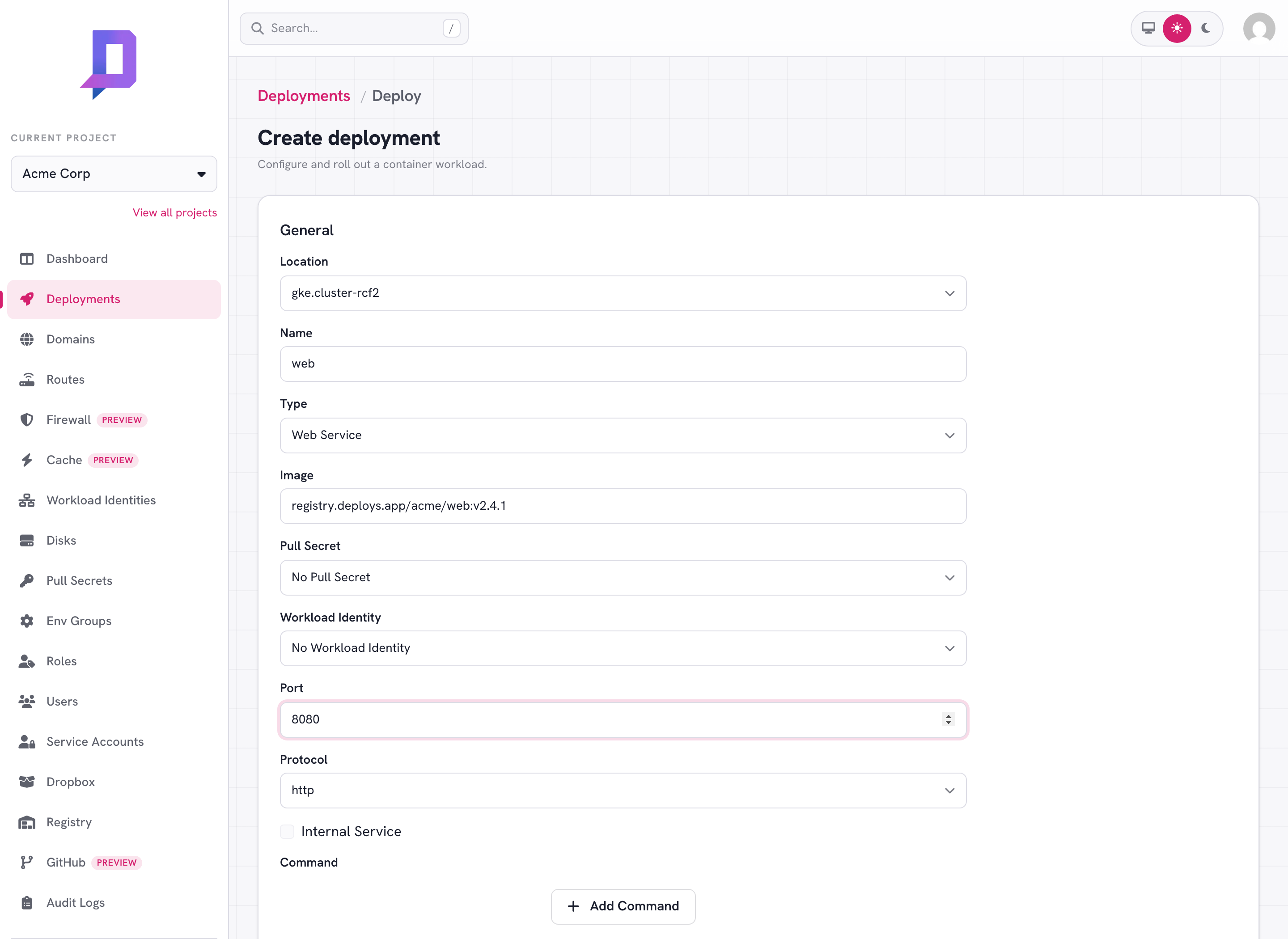
The console’s deploy form gathers all configuration on a single screen. The same fields show up on the Deploy New Revision button on an existing deployment, pre-filled with the current values.
Identity — project, location, name#
The triple that uniquely identifies a deployment. name must be DNS-safe
(lowercase letters, digits, hyphens) because it ends up in your public hostname.
Once a deployment exists, name and location can’t change — a “rename” is
just a delete + create.
Image — image#
A fully-qualified container image reference, with a tag or digest.
nginx:1.27
registry.deploys.app/acme/web:v2.4.1
ghcr.io/acme/api@sha256:c2f8…
Pin a specific tag or — better — a digest. :latest is allowed but rolls out
the current latest at deploy time and never re-pulls, so a future
latest push won’t reach your running deployment.
If the image is in a private third-party registry, attach a
pull secret with pullSecret.
Type and port — type, port, protocol, internal#
type decides what shape the deployment takes — see
Deployment types for the full list of strings. The other
three only apply to web services and internal TCP services:
port— the container port your app listens on (e.g.8080).protocol— forWebServiceonly. One ofhttp,https, orh2c(HTTP/2 cleartext).internal— forWebServiceonly.truekeeps the service inside the cluster (no public hostname).
Resources — resources.requests / resources.limits#
Each container declares both a request (the minimum it always gets) and a limit (the cap). Values are Kubernetes-style:
| Field | Example values |
|---|---|
cpu | 100m, 250m, 500m, 1000m, 2000m |
memory | 128Mi, 256Mi, 512Mi, 1Gi, 2Gi |
The values you can pick come from the location — call location.get (or open
the deploy form) to see what each cluster allows. Billing meters the
request, so size it carefully: too small and the container OOM-kills, too
big and you pay for headroom you don’t use.
Scaling — minReplicas, maxReplicas#
The platform autoscales between the two. Set them equal to pin a fixed replica
count. Set both to 0 (or omit, for CronJob) when replica count isn’t
meaningful.
Command and args — command, args#
Override the image’s ENTRYPOINT / CMD. Both are string arrays; if you set
command, you almost always also want args.
{
  "command": ["node"],
  "args": ["dist/worker.js", "--shard=1"]
}
Environment — env, envGroups#
env is a map of literal key/value pairs. envGroups is a list of named
env group references whose contents are
merged in. The deploy form has fields for both. The deploy API also accepts
addEnv / removeEnv / addEnvGroups / removeEnvGroups for partial updates
that don’t disturb other variables — see the
environment variables guide.
Schedule — schedule (CronJob only)#
A 5-field cron expression in UTC. Standard syntax: min hour dom mon dow.
0 3 * * *      # every day at 03:00 UTC
*/15 * * * *   # every 15 minutes
0 9 * * 1-5    # 09:00 UTC on weekdays
Disk — disk#
Mount a persistent disk into the container. The disk must
already exist in the same (project, location) and must not be attached to
another deployment.
{
  "disk": { "name": "uploads", "mountPath": "/data" }
}
Optional subPath mounts a sub-directory of the disk only.
Pull secret and workload identity#
pullSecret— references a pull secret in the same(project, location)for private third-party images.workloadIdentity— references a workload identity so the container can use Google Cloud APIs as a GCP service account without long-lived keys.
Sidecars — sidecars#
A sidecar is a helper container that shares the pod with your main container and
its lifecycle. Sidecars are curated: you pick one from a fixed set and configure
it, you don’t supply an arbitrary image. Two managed sidecars are available — the
Cloud SQL Auth Proxy (cloudSqlProxy) and the AlloyDB Auth Proxy
(alloyDbProxy). You can attach up to two sidecars per deployment, and they must
listen on different ports.
Cloud SQL Auth Proxy — cloudSqlProxy#
"sidecars": [
  {
    "cloudSqlProxy": {
      "instance": "my-project:asia-southeast1:main",
      "port": 5432,
      "autoIamAuthn": true,
      "privateIp": true
    }
  }
]
instance— required; the Cloud SQL instance connection name.port— the local port the proxy listens on (default3300). Your app connects to the database at127.0.0.1:<port>.credentials— optional service-account JSON for the proxy; omit it to use the deployment’s ambient credentials.autoIamAuthn— optional; authenticate to the database with the deployment’s IAM principal instead of a database password. Pair it with aworkloadIdentitybinding for fully keyless access. Cannot be combined withcredentials.privateIp— optional; connect to the instance’s private IP instead of its public IP.
The platform runs this as a cloudsql-proxy container alongside yours.
AlloyDB Auth Proxy — alloyDbProxy#
The AlloyDB Auth Proxy works the same way for an AlloyDB (PostgreSQL) instance:
"sidecars": [
  {
    "alloyDbProxy": {
      "instance": "projects/my-project/locations/asia-southeast1/clusters/main/instances/primary",
      "port": 5432
    }
  }
]
instance— required; the full AlloyDB instance URI (projects/<project>/locations/<location>/clusters/<cluster>/instances/<instance>).port— the local port the proxy listens on (default5432). Your app connects to the database at127.0.0.1:<port>.credentials— optional service-account JSON for the proxy; omit it and bind aworkloadIdentityso the proxy authenticates keyless via Application Default Credentials and nothing sensitive is stored.
The platform runs this as an alloydb-proxy container alongside yours.
TTL and one-shot jobs — ttl#
Seconds until the platform deletes the deployment automatically. 0 clears any
existing TTL. Combine ttl with type: Worker for one-shot tasks you don’t
want to manage by hand.
deployment.deploy request body. The deploy form is just a
nicer way to fill that JSON.